The <mat-button>, an Angular Directive, is used to create a button with material styling and animations.
In this chapter, we will showcase the configuration required to draw a button control using Angular Material.
Follow the following steps to update the Angular application we created in Angular 6 - Project Setup chapter −
| Step | Description |
|---|---|
| 1 | Create a project with a name materialApp as explained in the Angular 6 - Project Setup chapter. |
| 2 | Modify app.module.ts, app.component.ts, app.component.css and app.component.html as explained below. Keep rest of the files unchanged. |
| 3 | Compile and run the application to verify the result of the implemented logic. |
Following is the content of the modified module descriptor app.module.ts.
import { BrowserModule } from '@angular/platform-browser';
import { NgModule } from '@angular/core';
import { AppComponent } from './app.component';
import {BrowserAnimationsModule} from '@angular/platform-browser/animations';
import {MatButtonModule,MatIconModule} from '@angular/material'
import {FormsModule, ReactiveFormsModule} from '@angular/forms';
@NgModule({
declarations: [
AppComponent
],
imports: [
BrowserModule,
BrowserAnimationsModule,
MatButtonModule,MatIconModule,
FormsModule,
ReactiveFormsModule
],
providers: [],
bootstrap: [AppComponent]
})
export class AppModule { }
Following is the content of the modified CSS file app.component.css.
.tp-button-row button,
.tp-button-row a {
margin-right: 8px;
}
Following is the content of the modified HTML host file app.component.html.
<div class = "example-button-row">
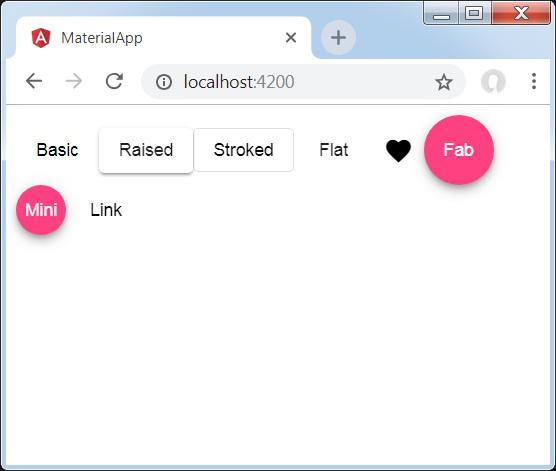
<button mat-button>Basic</button>
<button mat-raised-button>Raised</button>
<button mat-stroked-button>Stroked</button>
<button mat-flat-button>Flat</button>
<button mat-icon-button>
<mat-icon aria-label="Heart">favorite</mat-icon>
</button>
<button mat-fab>Fab</button>
<button mat-mini-fab>Mini</button>
<a mat-button routerLink = ".">Link</a>
</div>
Verify the result.